
YouTube Shorts Safe Zone Overlay
Stop guessing. Get the free PNG overlay used by pro video editors for Premiere Pro, DaVinci Resolve, After Effects & more.
Master the 9:16 Short
This Safe Zone template is the essential guide for content creators tired of unexpected cropping.
Preview before posting
FULL SCREEN
Vertical Shorts
12.6kb PNG (Transparent)
Why Use a Shorts Overlay Template?
Professional video editors trust templates for perfect shorts every time
🎬
Preview Before Posting
See exactly how your video will look on the YouTube Shorts feed before you export and upload. No surprises.
✂️
Avoid Safe Zone Issues
Ensure important content isn’t hidden behind channel info, subscribe buttons, descriptions, or other UI elements.
⚡
Speed Up Your Workflow
Edit faster knowing your framing is correct. Save time by avoiding re-edits after posting.
👥
Client Presentations
Show clients realistic mockups of how their content will appear on YouTube before final approval.
🎯
Professional Results
Create content that’s optimized for YouTube Shorts’ current 2026 format from the start.
💰
100% Free Forever
No watermarks. Download the YT Shorts safe zone template and use as many times as you need.
Safe Zone Dimensions
Understanding the YouTube Shorts UI overlay ensures your content isn’t hidden
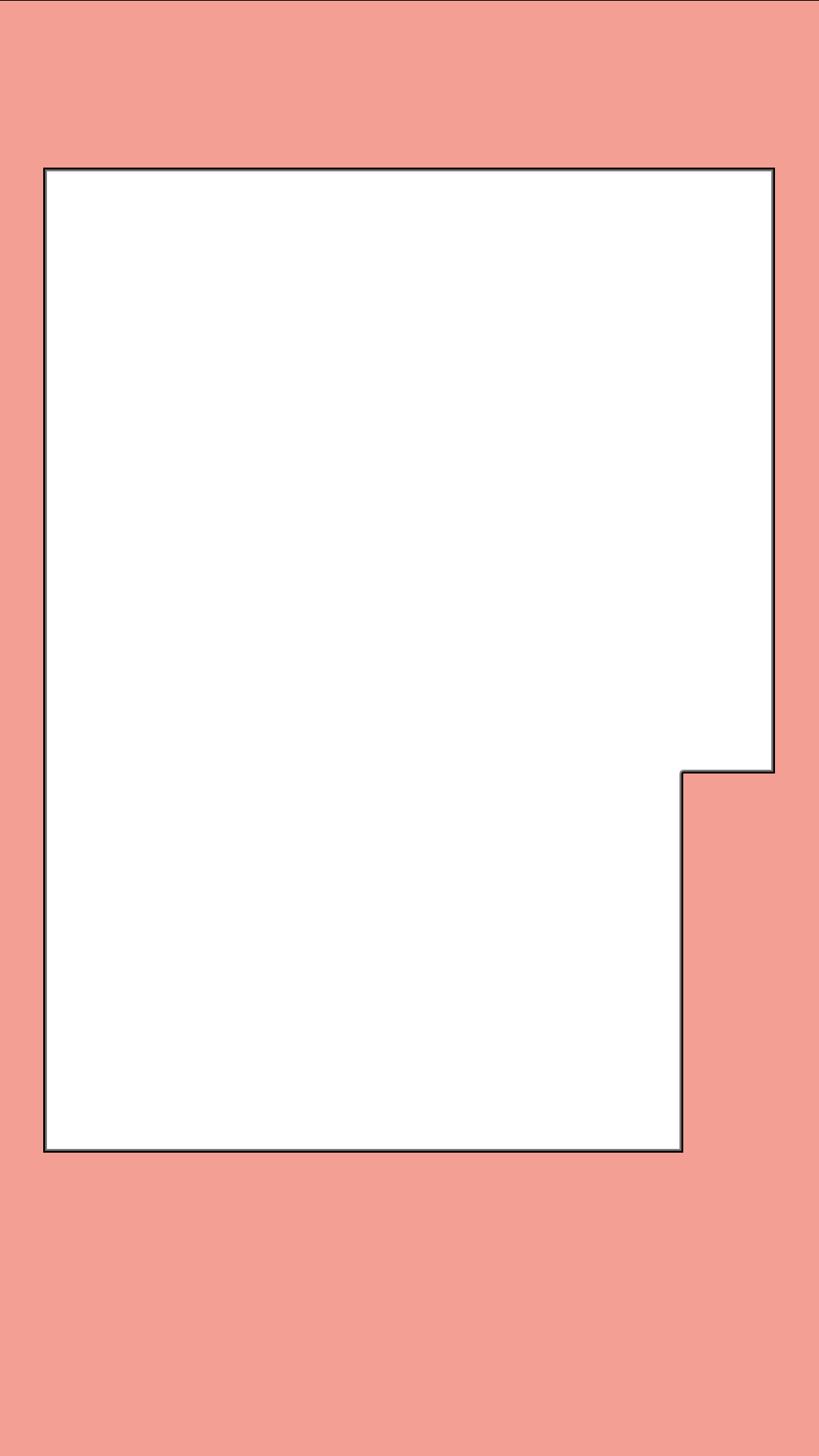
Top buffer: 220px (11.5%)
YouTube’s and three dot menu occupy this area permanently. iPhones also have front camera cutouts that can obscure content here.
This is the least critical buffer. You can reduce it slightly if needed since the top UI is less intrusive.
Bottom buffer: 400px (21%)
Profile picture, username, subscribe button, description text, audio attribution and suggested videos all appear here. Sponsored Shorts with CTA require a little more clearance.
This buffer is important, but can be reduced somewhat in a pinch, it’s a good practice to keep it clean (and darker) to make reading easier.
Left and right buffers: 60px (5.5%)
YouTube crops the edges when optimizing for different screen sizes and aspect ratios. Keep all critical elements (text, faces, logos) away from the sides to prevent them from being cut off.
Engagement cluster: 180px (16.5%)
The like, comment, share, and remix buttons stack vertically along the right side. This 120px-wide cluster sits 60px from the screen edge.
Optimal safe zone: 960px by 1300px rectangle, minus the engagement cluster overlap.
For some videos, adding black bars can help prevent unwanted cropping or zooming.
How to Use The Template
Step 1: Download the PNG Overlay
Step 2: Import to Your Editor
Open your video editing software (Premiere Pro, After Effects, DaVinci Resolve, Final Cut Pro, CapCut, Meta’s Edits etc.) and import the file.
Step 3: Place Over Your Video
Drag the template to the top layer above your video content. Scale it to match your sequence resolution (1080×1920 for 9:16).
Step 4: Edit With Confidence
Now you can see exactly where YouTube’s UI elements will appear. Keep important content in the safe zones and edit knowing your framing is perfect!
💡 Pro Tip: Create a project template in your editing software with the overlay already in place. This saves time on every new project!