

Working from home gives you freedom and flexibility, but it also puts full responsibility for your comfort and health on you. A poorly set up home office can lead to back pain, neck strain, fatigue, and reduced productivity. Even without a dedicated or fully equipped home office, you can optimize what you already have and build a workspace that feels comfortable and functional.
This guide walks you through how to set up home office ergonomics step by step, so you can work efficiently and sustainably.
It Starts With The Chair
Your chair forms the foundation of your entire setup. If it is not adjusted correctly, every other ergonomic improvement becomes harder to achieve.
Height and foot support
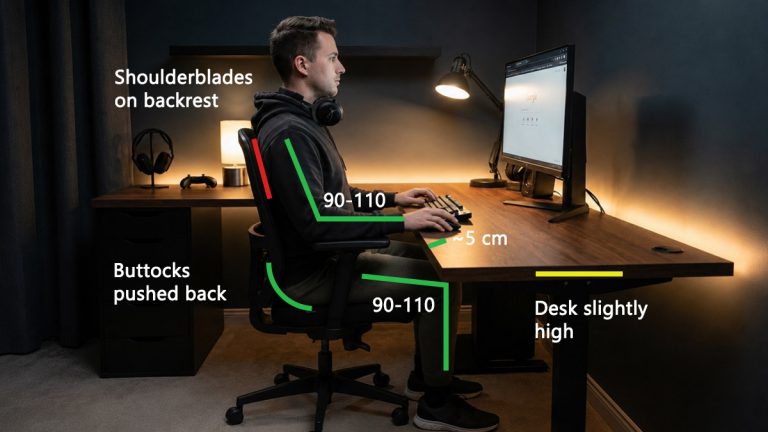
When setting up your chair, make sure your feet stay grounded and your knees are bent at roughly 90 degrees. Your thighs should be parallel to the floor, with your hips slightly higher than your knees if possible.
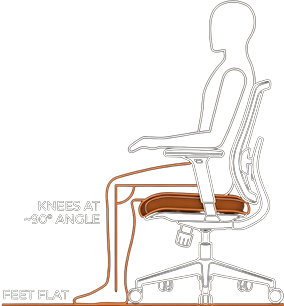
Do not worry if your desk feels too high. There are tricks to make your setup more ergonomic using what you already have, such as adding a footrest to prevent your feet from dangling.
To help you in the right direction you can use a chair height calculator. It uses aggregate popliteal height data from ANSUR II to calculate your ideal seat height based on your body height.
While a web calculator cannot measure the soft tissues on your thighs or seat cushion density, it should provide a “Target Zone” of ±2 cm to account for these variables.
Why does this matter? If the seat pan is higher than your popliteal height, your feet dangle, creating pressure behind the knees and restricting circulation. If the seat is too low, the hips bend too deeply, causing the pelvis to tilt backward and flatten the natural curve of the lower back.
Armrests
A common issue occurs when the correct chair height does not fit under the desk because of the armrests. In this case, consider stepping farther out of the desk or removing the armrests entirely if they’re not adjustable.
Armrests should be set so your elbows rest at about a 90 degree angle with relaxed shoulders. They should support the weight of your arms without lifting your shoulders or pushing them outward.
Distance From the Desk
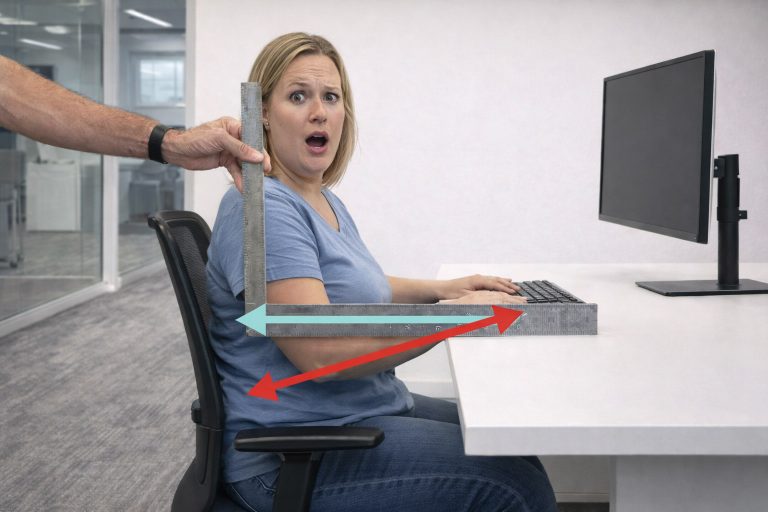
Overreaching to access your workstation can create muscle tension in the wrists, neck and shoulders. If you are experiencing this, reposition and you will notice relief in these areas rather quickly.
Ideally, your elbows should stay close to your sides while working. For many people this would require a complete overhaul of their home office setup, but small improvements help. Start by moving your keyboard and mouse closer and reducing unnecessary reach.
Desk Height
Elbow height closely corresponds to desk height again. The modern work surface is keyboards and not paper, like the old days, so the desk surface should be slightly lower than your elbows, allowing your arms to hover slightly.
We have you covered with a calculator again. This ergonomic calculator has a slider takes into account keyboard thickness to give you a precise estimate of your ideal desk height.
Standing Desks
Height adjustable desks are one of the best ergonomic upgrades because they allow fine tuning and posture variation throughout the day.
When standing, the same rules apply as when sitting. Use your standing elbow height as the reference point, keep your shoulders relaxed, and avoid locking your knees. Alternating between sitting and standing is more beneficial than standing all day.
Solution for Fixed Desks
Sadly most office desks are manufactured to a fixed height of 29 inches (74 cm). BIFMA (the furniture safety association) confirms this creates a mismatch for the vast majority of people.
A 29-inch desk is designed to fit a man who is 6’2″ (188 cm) tall.
This height was not chosen for ergonomics. It was historically chosen to provide clearance for a pencil drawer over the thighs and to allow chair armrests to slide underneath.
The Solution: Since you cannot lower the desk, you must raise your chair until your elbows are level with the keyboard. This will leave your feet dangling, which is why our desk and chair height calculators prescribe the exact height of the footrest needed.
Setting Up Monitor Height
Monitor position has a direct impact on neck posture and eye comfort.
Eye level positioning
Your monitor should be placed so the top of the screen is at or slightly below eye level (aim for the browser tabs). This allows your eyes to naturally look slightly downward at the main content, reducing strain on the neck and upper spine.
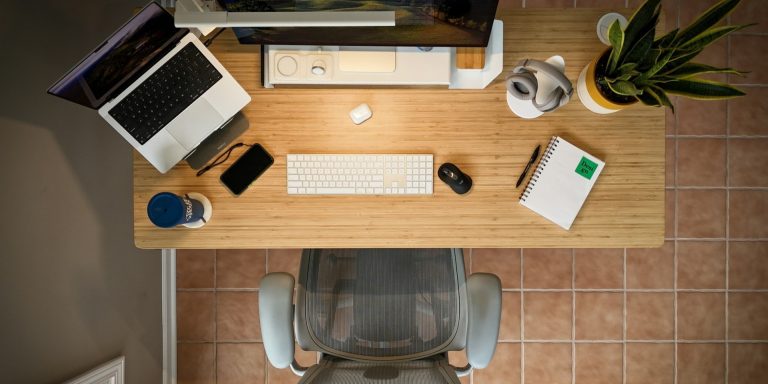
If you use a laptop as your main device, consider raising it on a stand or stack of books and pairing it with an external keyboard and mouse.
Viewing distance
The screen should be positioned about an arm’s length away. Larger monitors may need to sit slightly farther back, while smaller screens can be closer.
If you find yourself leaning forward or squinting, adjust the distance before assuming the screen size is wrong.
Lighting and Eye Comfort
Eye comfort depends heavily on how evenly a workspace is illuminated. Poor lighting increases visual strain, contributes to headaches, and can make even a well-positioned monitor feel uncomfortable.
Placement and glare
Minimizing harsh contrasts and reflections reduces visual stress throughout the day. Your workspace should be evenly lit using ambient light for the room and a task light for focused work.
Avoid placing light sources directly behind your monitor or shining straight into your eyes. If possible, position your desk so windows sit to the side rather than in front of or behind the screen. Blinds or diffusers help soften natural light as conditions change throughout the day.
Ambient lighting provides general illumination, while task lighting supports desk work. Relying only on overhead lights alone often creates shadows on the work surface, while using a bright desk lamp in a dark room forces the eyes to constantly adjust.
Screen brightness and contrast
Your monitor should blend naturally with the brightness of the room. If the screen appears to glow compared to its surroundings, it is likely too bright. If text feels difficult to read, contrast may be too low. Adjust brightness so white areas resemble paper under the same lighting conditions, and increase contrast until text appears sharp without causing glare.
These small adjustments here can significantly reduce eye fatigue during long sessions.
Keyboards, Mice, and Wrist Posture
The interaction between your hands and input devices is a high-risk area for repetitive strain. The goal of ergonomic placement is to maintain a neutral wrist posture, where the hands, wrists, and forearms stay straight and parallel to the floor.
The Role of Keyboard Thickness
Standard mechanical keyboards often stand 35 to 40 mm tall, which can force the wrists into an extended (bent upward) position, especially when paired with a high desk.
Low profile keyboards reduce can lower strain during long typing or use. A simple improvement is to fold down or remove the rear feet found on many keyboards.

When to use keyboard tray
If the desk cannot be lowered enough to achieve neutral wrist posture, an articulating keyboard tray is often the most effective solution. These trays allow the keyboard and mouse to sit below desk height, and many come with with a negative tilt feature, supporting straighter wrists.
Mouse Ergonomics
The mouse should sit on the same plane as the keyboard and close to your body to prevent “mouse reach”, a condition where the shoulder is abducted and the arm is extended forward, leading to rotator cuff discomfort.
Additionally you should use your mouse with movements driven from your shoulder and whole arm, keeping your wrist straight and relaxed, rather than pivoting from the wrist alone
If you experience wrist or forearm pain, vertical mice or trackballs can redistribute the load to larger muscle groups.
Movement Breaks
Even a perfectly adjusted workstation cannot compensate for prolonged static posture. Staying still for long periods compresses the spine and restricts circulation.
Take micro breaks every 30 to 45 minutes to stand, stretch, or change position. Simple posture shifts and short walks can noticeably reduce stiffness and fatigue.
Ergonomics extends beyond furniture. How you move throughout the day matters just as much.
The 20-20-20 Rule
To reduce digital eye strain, the American Optometric Association recommends the 20-20-20 rule. Every 20 minutes, take a 20 second break and look at something at least 20 feet away. This relaxes the focusing muscles of the eyes and helps prevent headaches and blurred vision.
Final Thoughts
Setting up proper home office ergonomics is one of the most impactful upgrades you can make as a remote worker or digital professional. Comfort directly affects how long and how well you can work.
At CreateComfy we believe your workspace should support your goals not work against them. A well designed ergonomic setup helps you stay focused healthy and comfortable so you can do your best work every day.
If you improve just one thing today make it your posture. Your future self will thank you.



Great point on how the chair forms the foundation of a good ergonomic setup. I’ve found that adjusting the chair height and ensuring my feet are flat on the floor really makes a difference in preventing back and leg pain. It’s amazing how small tweaks can have a big impact on comfort.