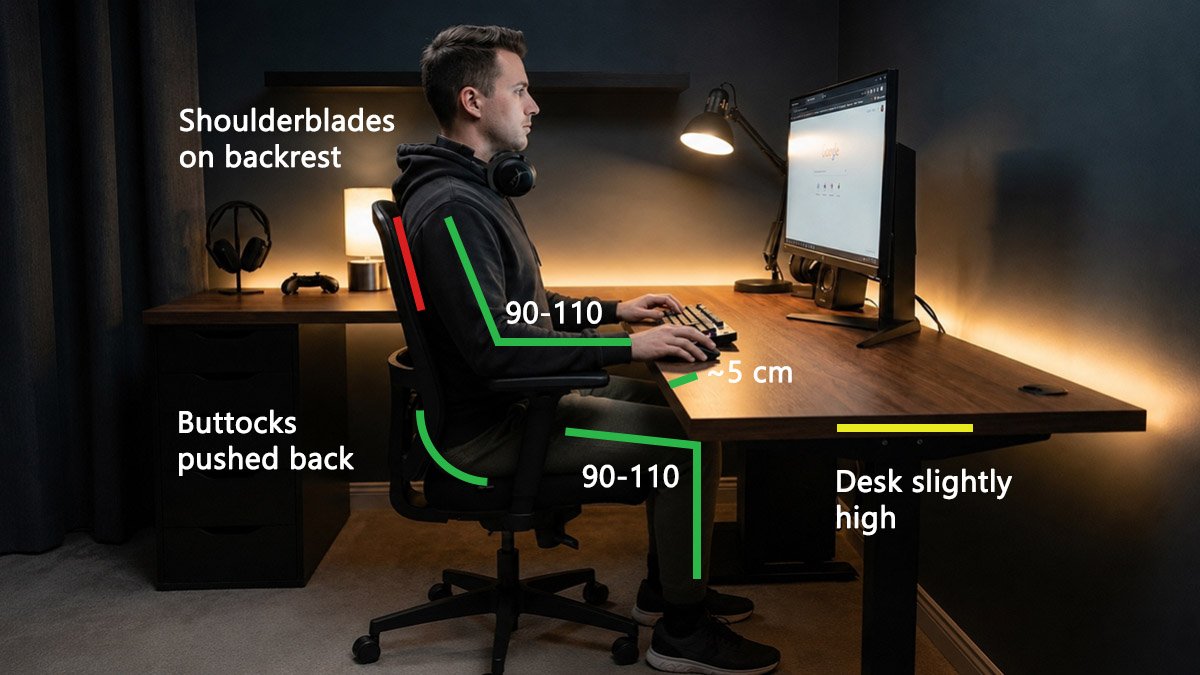
Gaming or working, there is no difference. Knowing how to sit at a computer desk properly is one of the biggest parts of protecting your body during long hours at the screen. This guide walks you through the correct posture step by step.
Most discomfort that builds up over time at a desk is not inevitable. It is the result of a setup that has never been properly adjusted, or habits that have never been questioned.
Chair and Desk Height
Furniture height and posture go hand in hand, so adjustability is key.
The calculator below gives you a good starting point, though your ideal height may vary based on your proportions or chair. Either way, the posture rules in this guide will lead you to the right setup.
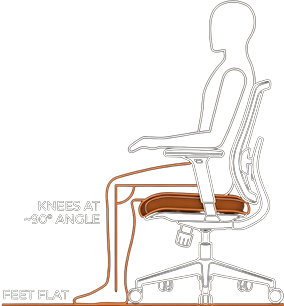
The chair range is based on popliteal height (floor to the back of your knee) plus 3.5 cm, placing your hips slightly above your knees, while the desk targets a comfortable 90 to 110 degree elbow bend.
For tips on non-adjustable furniture and a more precise recommendation, visit our full calculator page.
What is Neutral Posture?
According to OSHA, neutral posture is a comfortable working position where your body is balanced and your joints are naturally aligned.
Maintaining good posture is not about freezing in place. Slouching or sitting incorrectly from time to time is fine, as long as it is brief. These small shifts add necessary variability and are actually beneficial. Pair an ergonomic baseline posture with frequent movement breaks and you will be more productive and comfortable.
How to Properly Sit in an Office Chair
Proper posture at a desk and chair begins from the ground.
Leg Positioning
Rest your feet flat on the floor, or on a footrest if your setup is not adjustable.
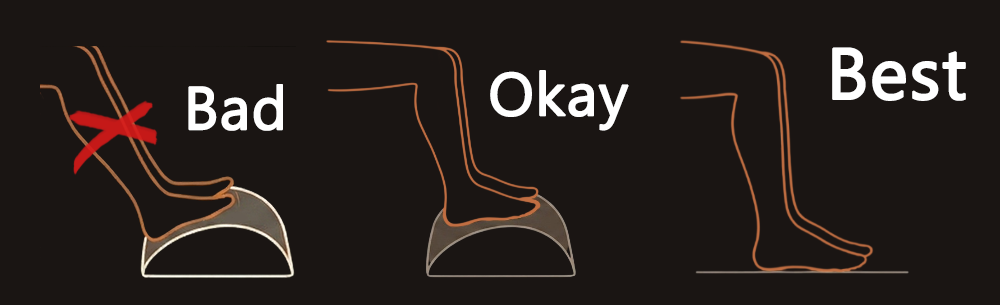
Adjust the chair height so your hips sit slightly higher than your knees, with the knees themselves bent at a 90 to 110 degree angle.
Buttocks and Pelvis Alignment
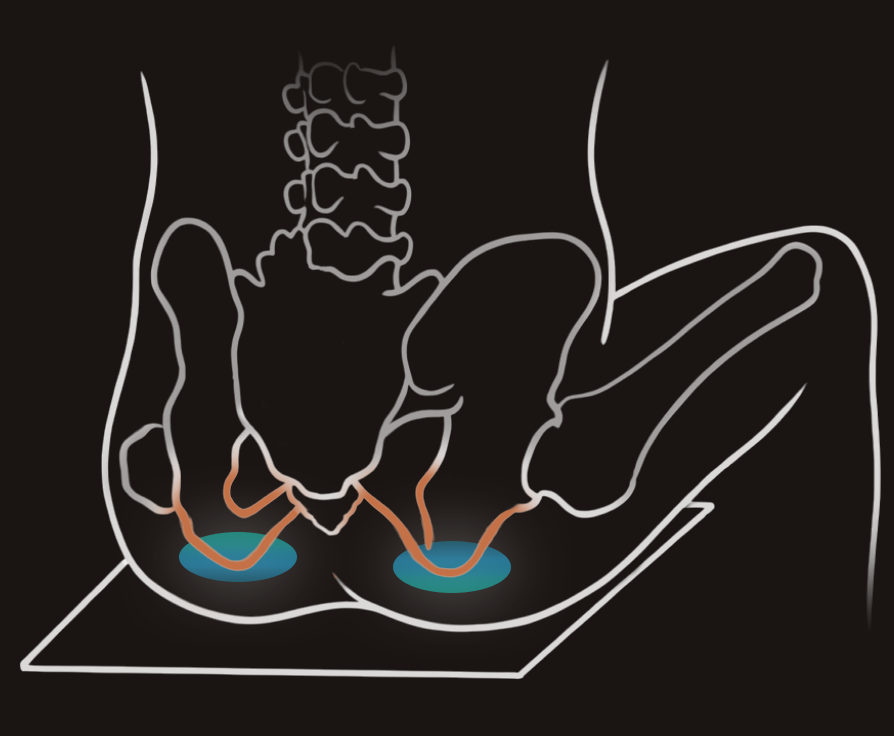
Push your bottom firmly against the backrest, then adjust your pelvis to a neutral position.
To check your alignment:
Slide your hands under you and feel for your sitz bones, the two prominent bones at the base of the pelvis. In a neutral pelvis, weight presses straight down, keeping the lower back properly supported. If you are slouching or over-arching, they will feel flat.
Seat Depth
Adjust the depth so 2 or 3 fingers fit easily between the back of your knees and the front edge of the seat.
- If the seat is too deep, it places pressure on the back of the knees.
- If the seat is too shallow, thighs lack support.
Lumbar Support
The lumbar support should fit snugly into the lower back’s natural curve. Position it so the bottom sits just above your belt line, bringing the thickest part roughly level with your belly button.
Armrests and Arms
Keep your elbows close to your sides while working. Without support, the weight of your arms commonly falls on the upper trapezius, which simply isnt built for constant lifting. Over time this leads to tension headaches and neck stiffness.
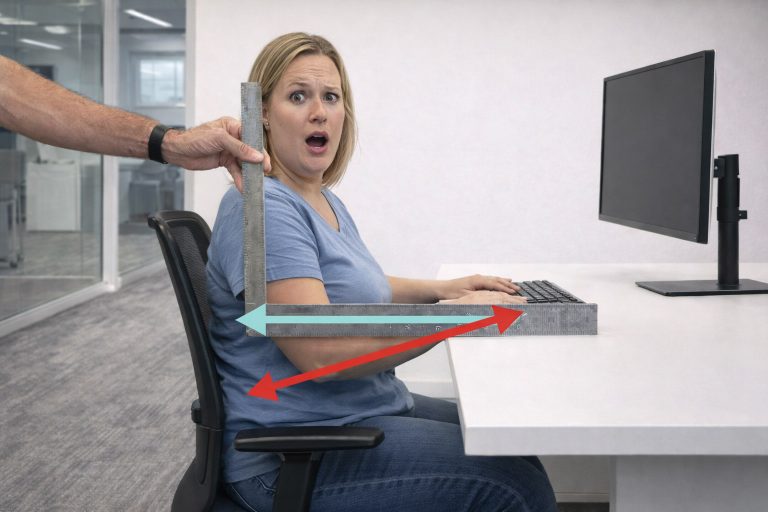
If your chair has armrests, set them to match your elbow height. They should be roughly parallel to the floor, allow your elbows to bend at 90 degrees or slightly more, and never push your shoulders into a shrug.
That said, armrests are not without their downsides. They can create friction and lock your elbows in place.
Ergonomist Olivier Girard promotes a better alternative: engaging your latissimus dorsi, the large muscles running down your mid to lower back. When active, they support your arms from below, keeping your neck relaxed and your elbows free to move.
To engage them, sit firmly on your sitz bones and let your upper body tilt forward by 3 to 4 degrees. You will feel a gentle tension along the sides of your torso. Leaning back into the chair switches these muscles off, slight forward tilt is key.
Backrest and Upper Body
Common ergonomic advice often says sit all the way back in your chair. Many people interpret this as pressing their entire back, including shoulders.
Pressing your shoulders into the backrest creates three specific problems:
- It hollows out your lower back.
- If you press harder, it forces your hips to slide forward.
- It traps your elbows behind your torso, requiring you to overextend to reach the keyboard.
To sit correctly, lock your pelvis into the lumbar support and let your torso balance naturally with a slight 2 to 5 degree forward tilt. This anchors your lower body while keeping your torso in a neutral position.
To find the angle, close your eyes and lean back until you feel your abdominal muscles contract, then lean slightly forward until they relax. That spot is your correct sitting position.
Reclining and Headrests
If you also want to recline and rest, a high backrest with a headrest is recommended.
When you lean back, your head tilts backward too. Without a headrest, your neck muscles must constantly contract to fight gravity. Reclining also raises your line of sight, making it difficult to see your screen or use your mouse, so it is best reserved for breaks rather than active work.
Correct Computer Desk Posture
Earlier we noted just an adjustable chair alone is often not enough. A high desk forces you to shrug or flare your elbows outward, while one that sits too low makes you hunch forward.
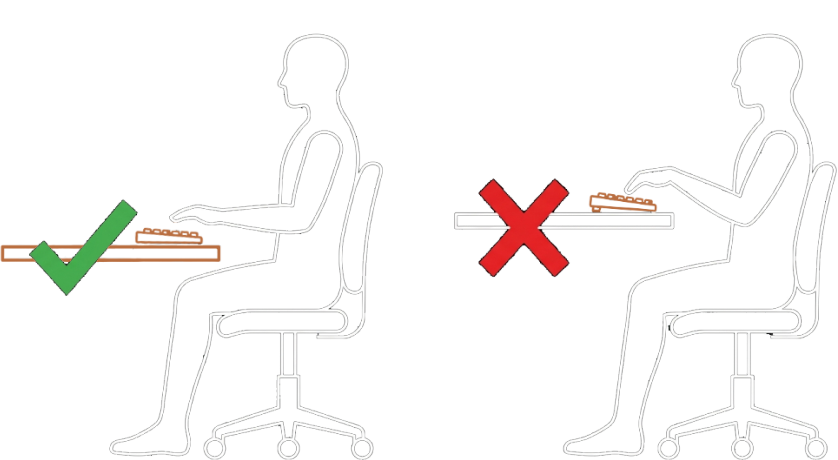
The Ideal Desk Height
The CCOHS recommends an elbow bend of 90 to 110 degrees. This puts the desk and keyboard slightly below your sitting elbow height.
The calculation uses a keyboard thickness of 3 cm (1.2 in).
Keyboard, Mouse and Distance From the Desk
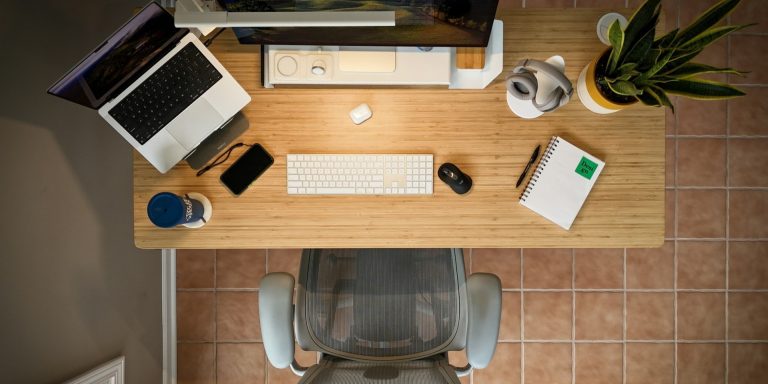
Avoid placing your keyboard and mouse too far. Keeping them approximately 5 cm (2 inches) from the desk edge to prevent overreaching is advised. The exact distance matters less than the outcome: your elbows should hang close to your sides with your forearms roughly parallel to the floor.
Note that if your desk cannot be lowered enough, placing input devices too close to the edge risks your wrists pressing against it.
Wrist Posture
Keep your wrists straight and in line with your forearms while typing or using the mouse. Bending them too much up or down creates increases pressure in the carpal tunnel.

At the right desk height, your wrists will naturally float above the surface.
Avoid the common habit of resting your wrists on the desk or a wrist pad while actively working. It acts as an anchor, forcing your hands to bend awkwardly side to side and putting pressure on the soft tissue beneath. Instead, let your wrists float slightly so your stronger arm and shoulder muscles can smoothly guide your movements.
Neck Posture and Monitor Placement
For every inch your head protrudes forward, an extra 10 pounds of load is placed on your neck. Positioning your monitor correctly is one of the simplest ways to prevent this.
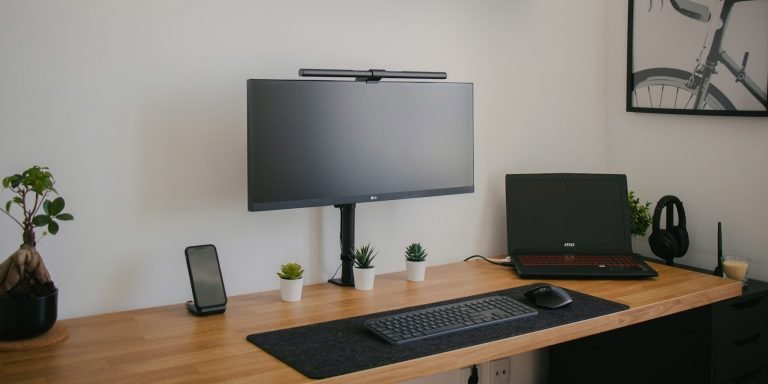
The top of the screen should sit at or slightly below eye level. A simple aim is to align your eyes with the browser tabs at the top of your screen. This should result in a natural 15 to 20 degree downward gaze as you read and allow your eyelids to cover more of the surface, reducing dryness and strain.

The ideal monitor distance depends on screen size, but 40 to 75 cm is the generally recommended range for typical computer work. For a more precise recommendation based on your screen size and height, use our monitor calculator.
The Laptop Problem
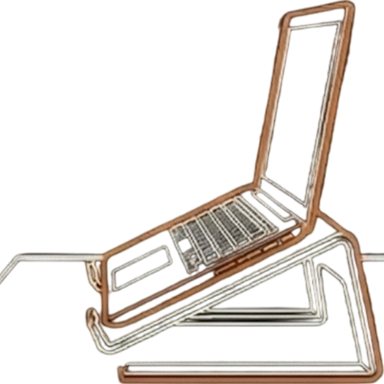
Laptops are an ergonomic nightmare for long-term use. If you position the screen at eye level, the keyboard is much too high for your arms. If the keyboard is at elbow level, you are forced to bend your neck downward to see the screen.
To achieve proper posture decouple the screen from the keyboard. Place your laptop on a stand to bring the screen to eye level, and use an external keyboard on your desk.
Beating the Static Posture Trap
Human bodies are meant to move. Even with perfect sitting posture, staying still for too long is harmful. Holding any fixed posture creates steady muscle tension that compresses blood vessels and reduces circulation.
Regular Movement Breaks
The best approach is offsetting computer use by living a more dynamic life and adding movement throughout your day.
Every 25–30 minutes, stand up and move for at least 1–2 minutes. Research shows that just 2 minutes of walking is enough to restore blood flow to the brain and support cognitive performance.
Simple options: walk around, do calf raises, shoulder rolls, or neck stretches.
The 20-20-20 Rule
Every 20 minutes, look at an object at least 20 feet (6 meters) away for 20 seconds. This simple habit relaxes the focusing muscles in your eyes, reduces strain, and helps prevent headaches and blurry vision.
Conclusion
Correcting your posture might feel slightly awkward at first if you have spent years slouching, but your body will quickly adapt to the proper alignment. The proper sitting posture is a force multiplier for your career and your health.
Even if your workstation is not fully adjustable, you're now more educated on how to build your setup in the future. We wish you a workspace that supports your best work every single day.
Not sure if your posture is actually right?
Reading about posture is one thing. Knowing whether your own setup measures up is another. ErgoCam uses your camera and AI to give you posture feedback in your actual desk setup, without the cost of a professional assessment.